 Larovi
On this page
What does the wall display show?
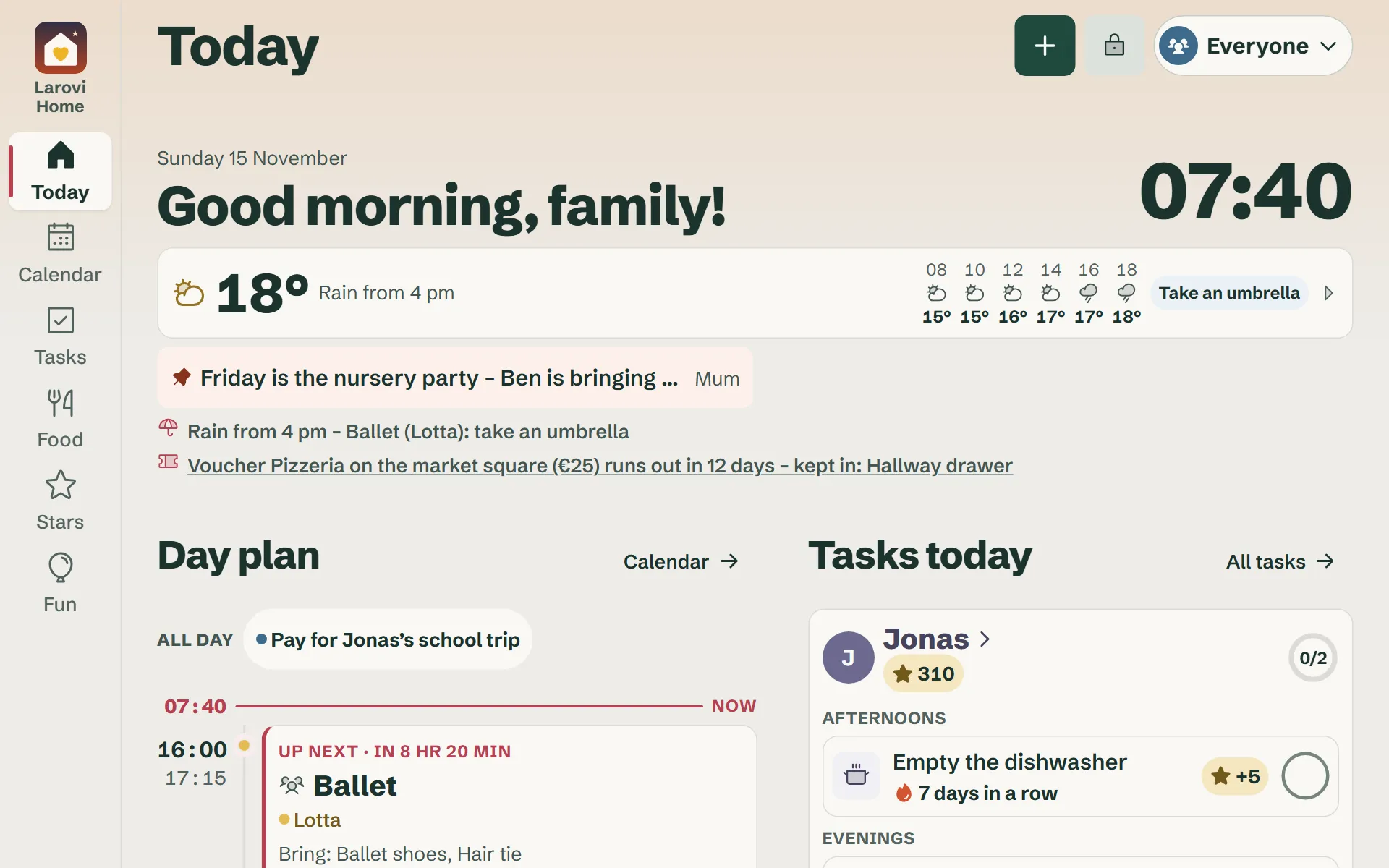
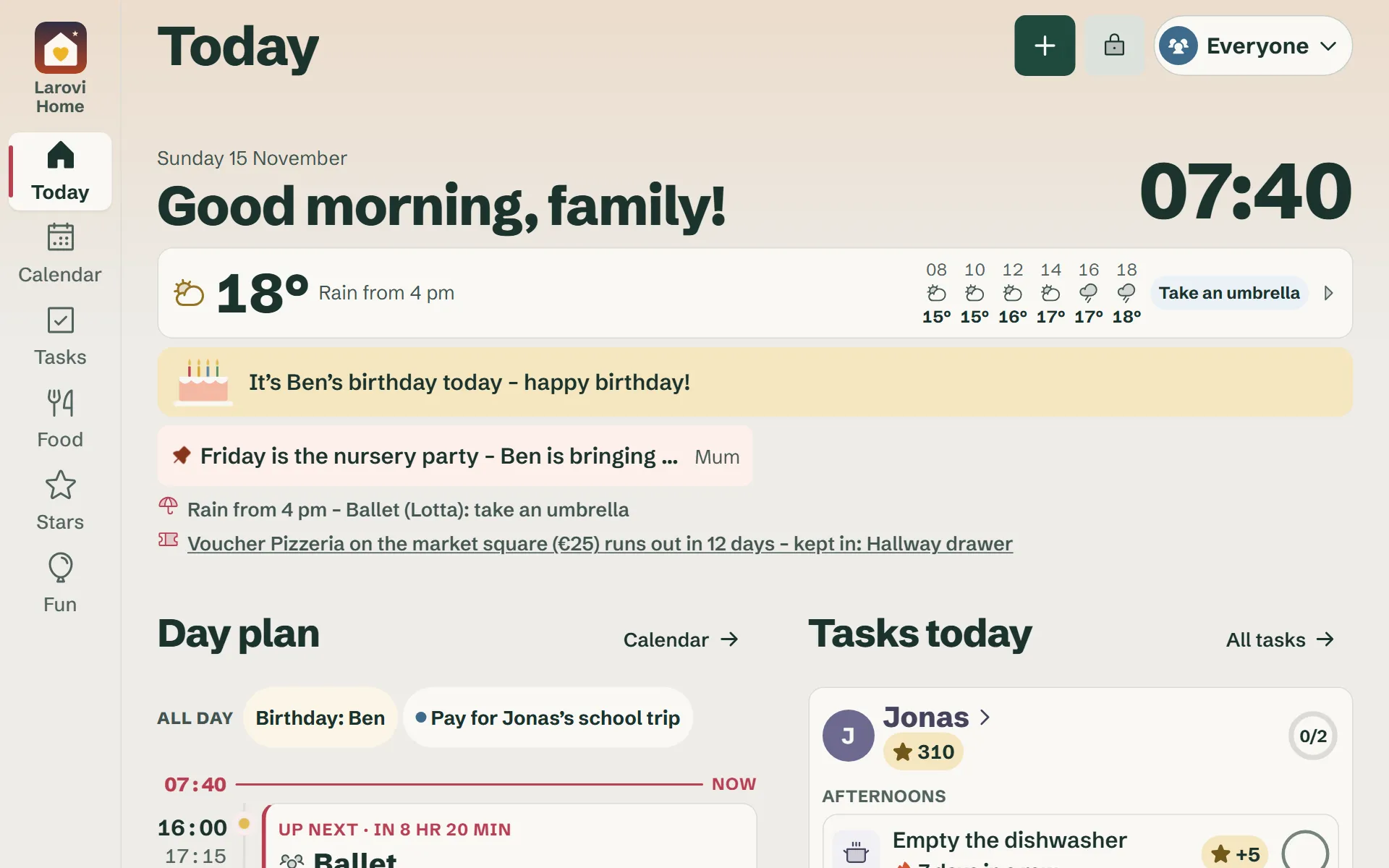
The whole family’s day at a glance: events, each kid’s tasks, the pinboard, the weather and the shopping list. The kids tick off their tasks right on the display.
Family mode or signing in: what is the difference?
On your own phone, you sign in with email or Google. A device everyone uses, you pair instead: it then runs in family mode, without signing in. A signed-in tablet looks similar but can’t do any of this. Only when paired:
- the screen stays on and goes quiet at night
- the rest screen with clock, weather and pinboard appears after a while
- a large reminder appears 15 minutes before events, with a chime if you like
- it goes back to “Today” for everyone after a short while
- kids can’t change events, tasks or settings
- parents open their area with the PIN, and it closes again after 2 minutes
What happens when nobody is looking?
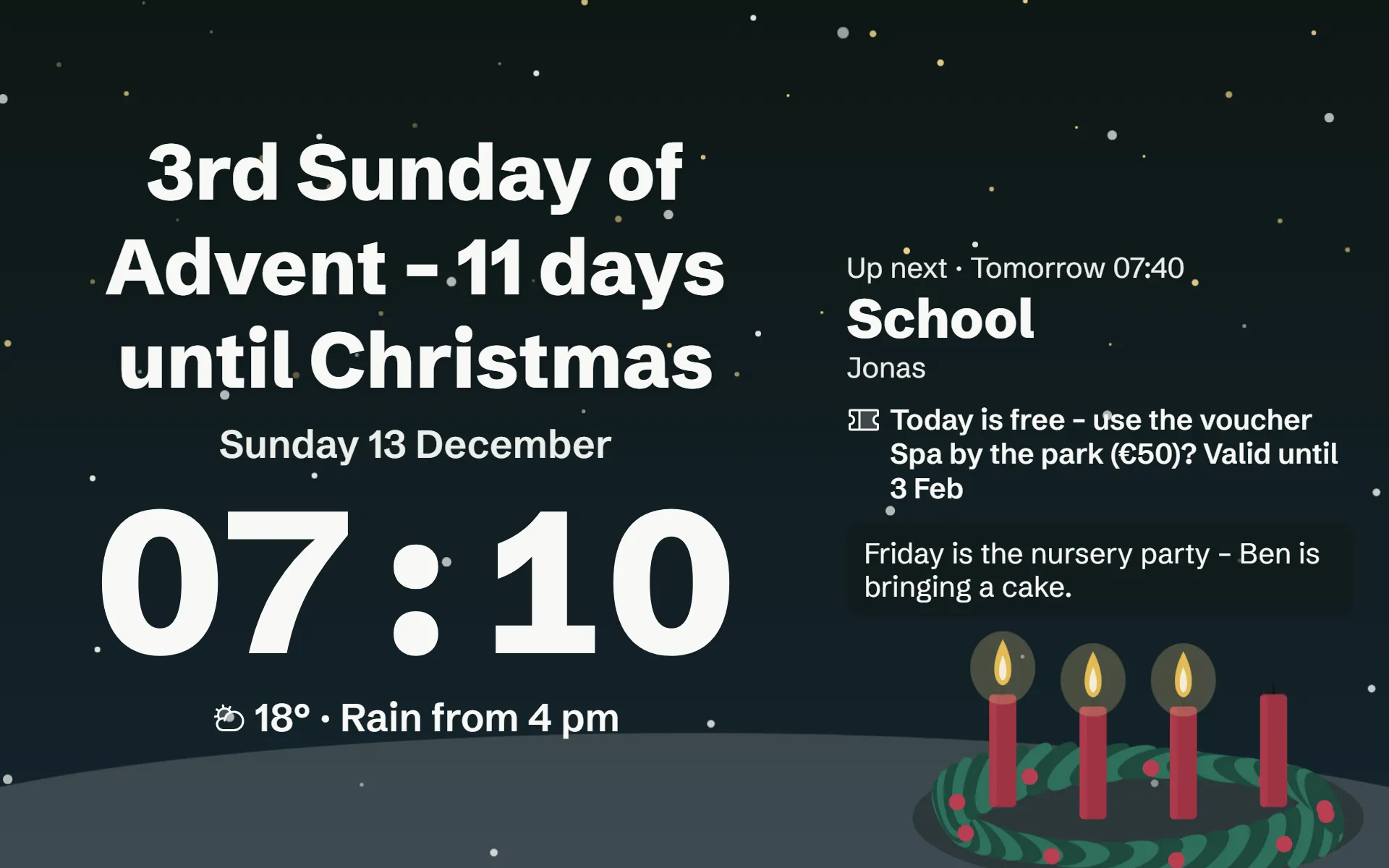
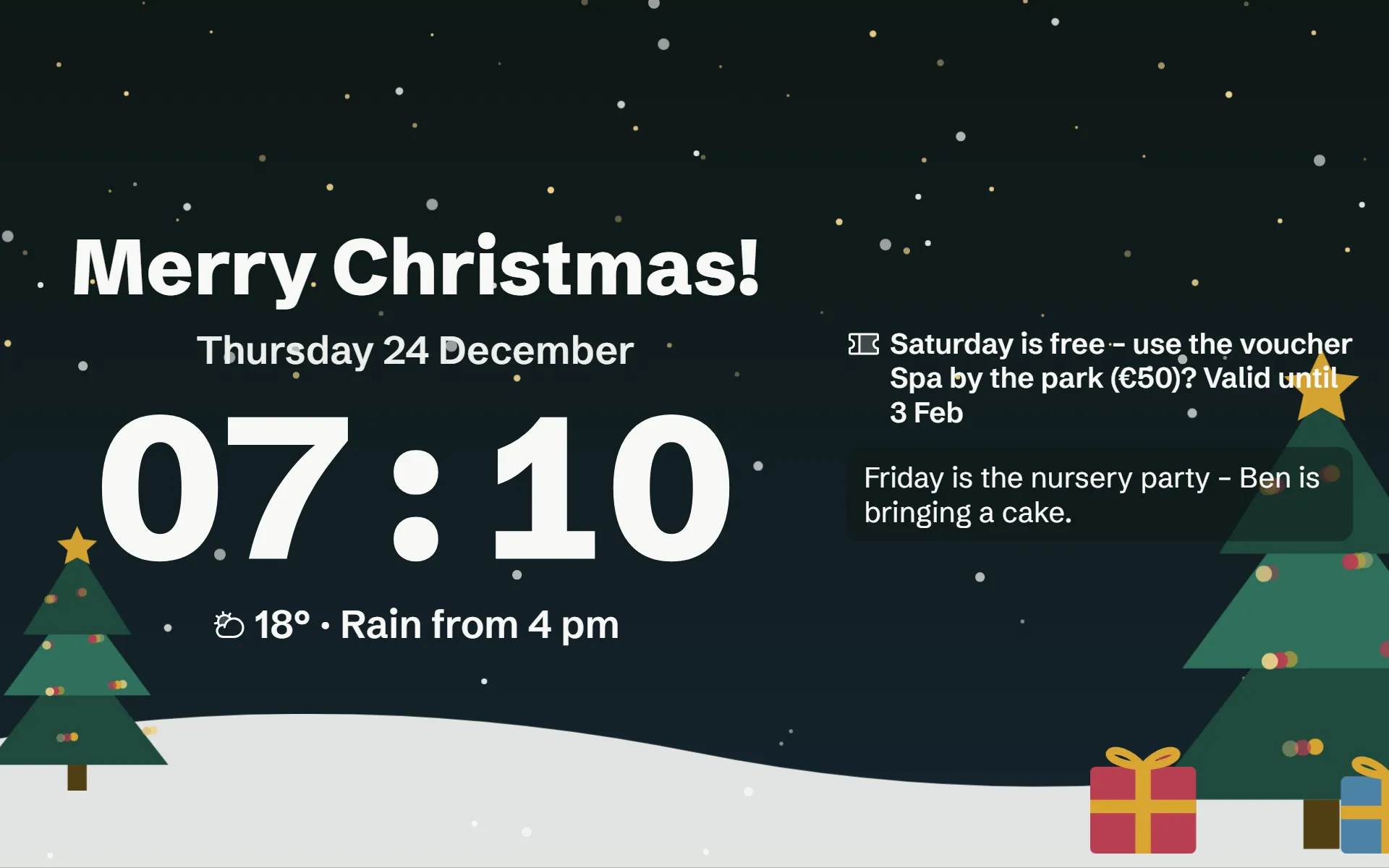
After a few minutes the display goes quiet. It shows a big clock, the weather, the next event and the pinboard notes against a sky that changes with the time of day and the weather. At night it goes almost black and only the clock stays. One tap and everything is back.
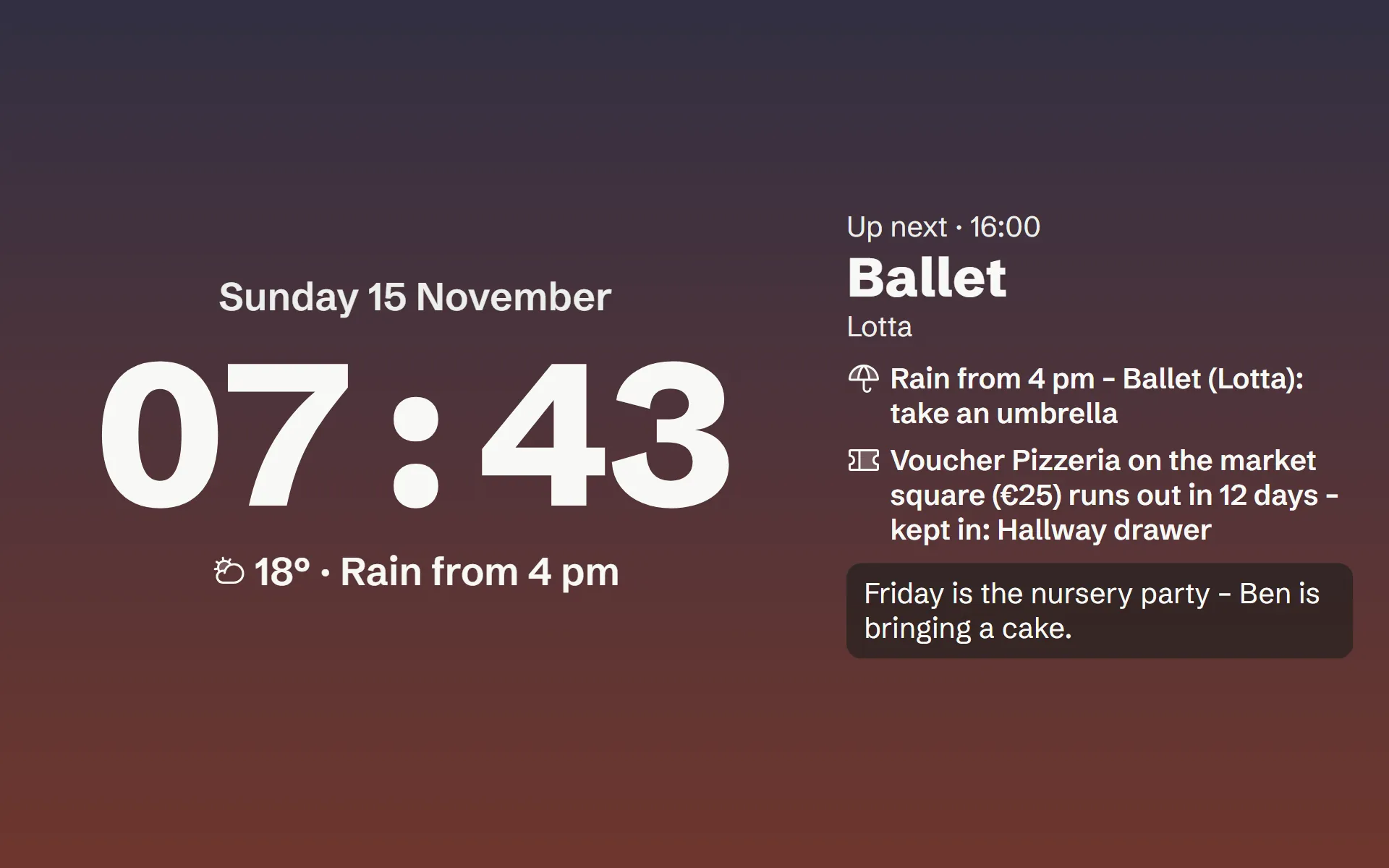
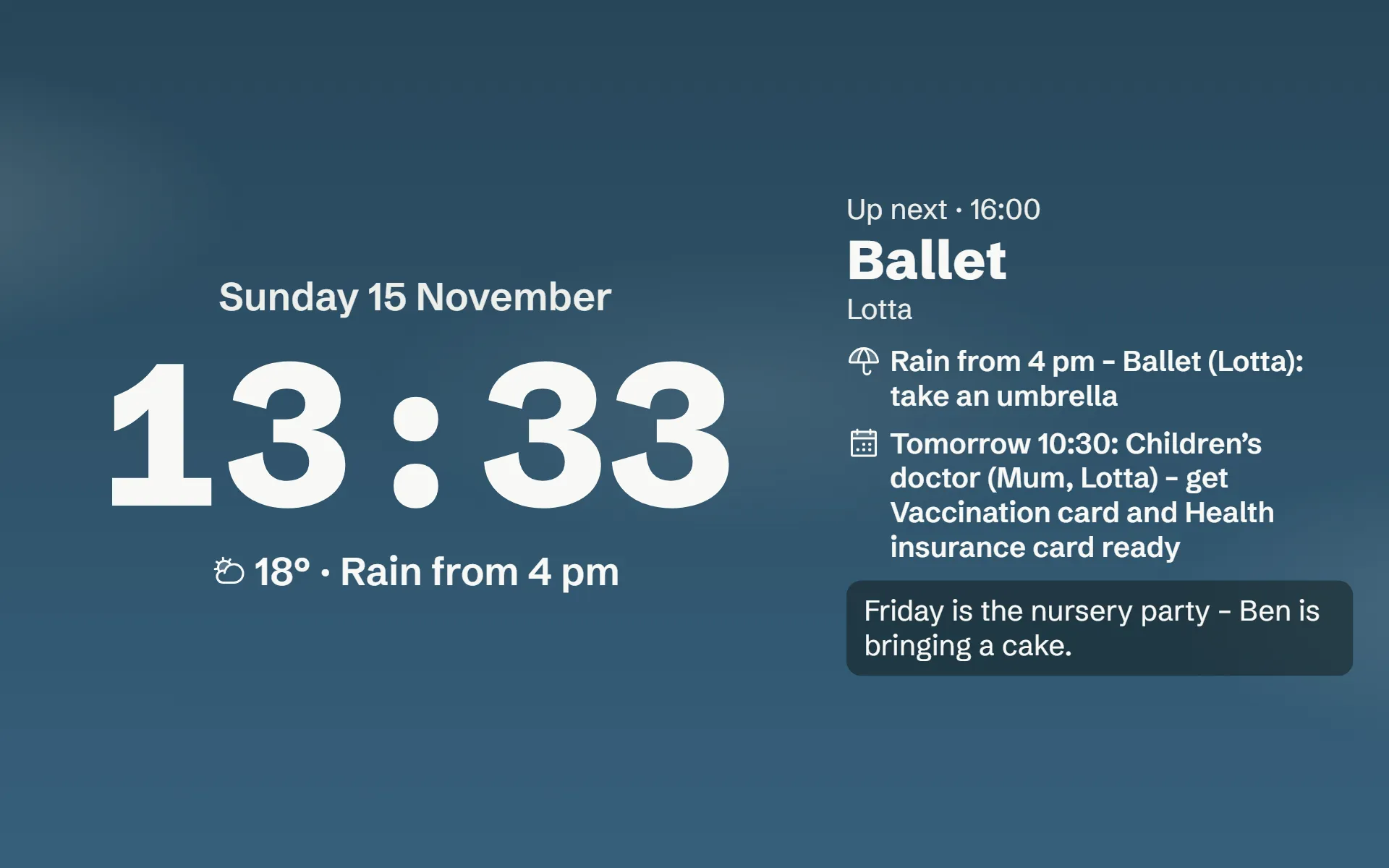
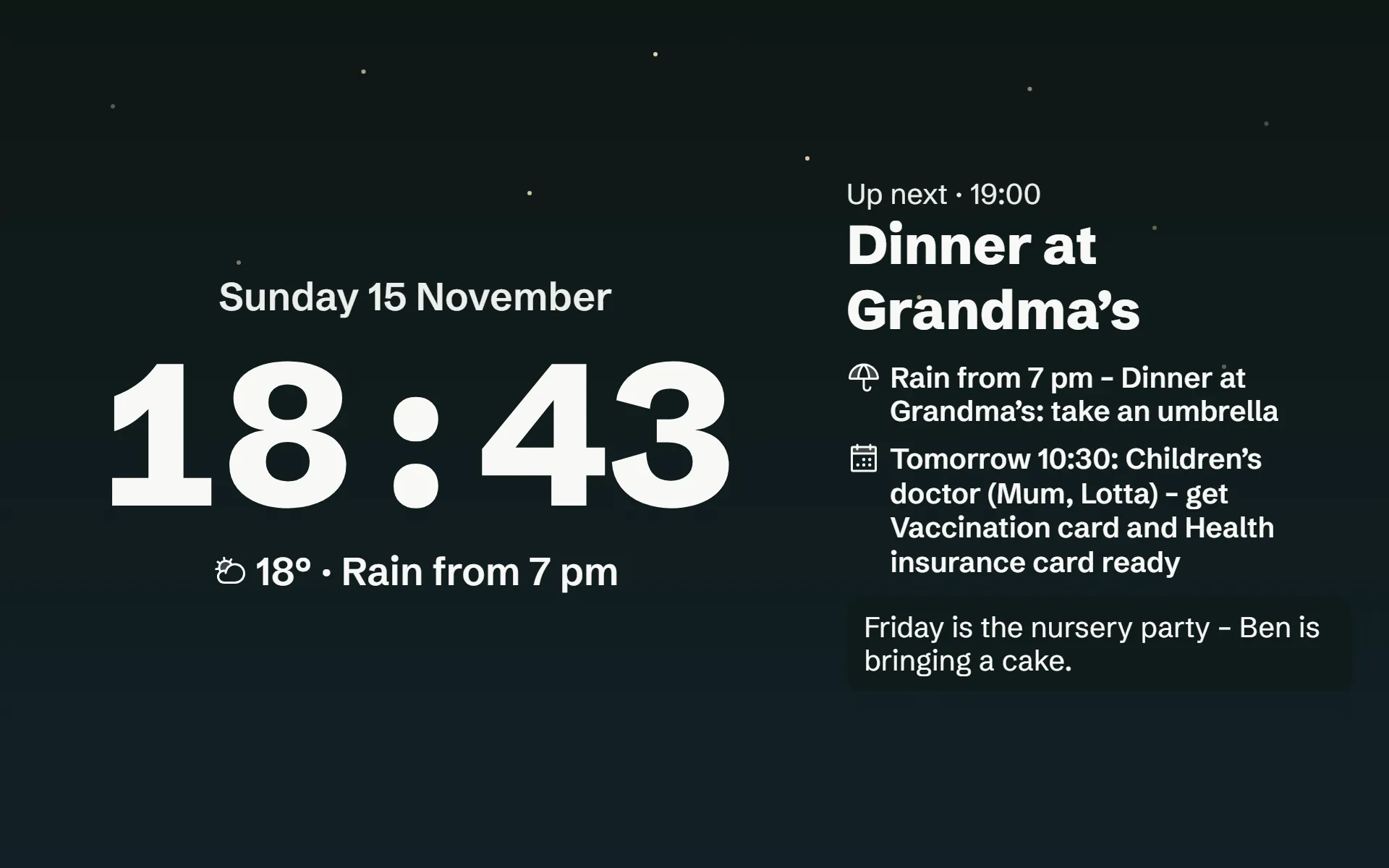
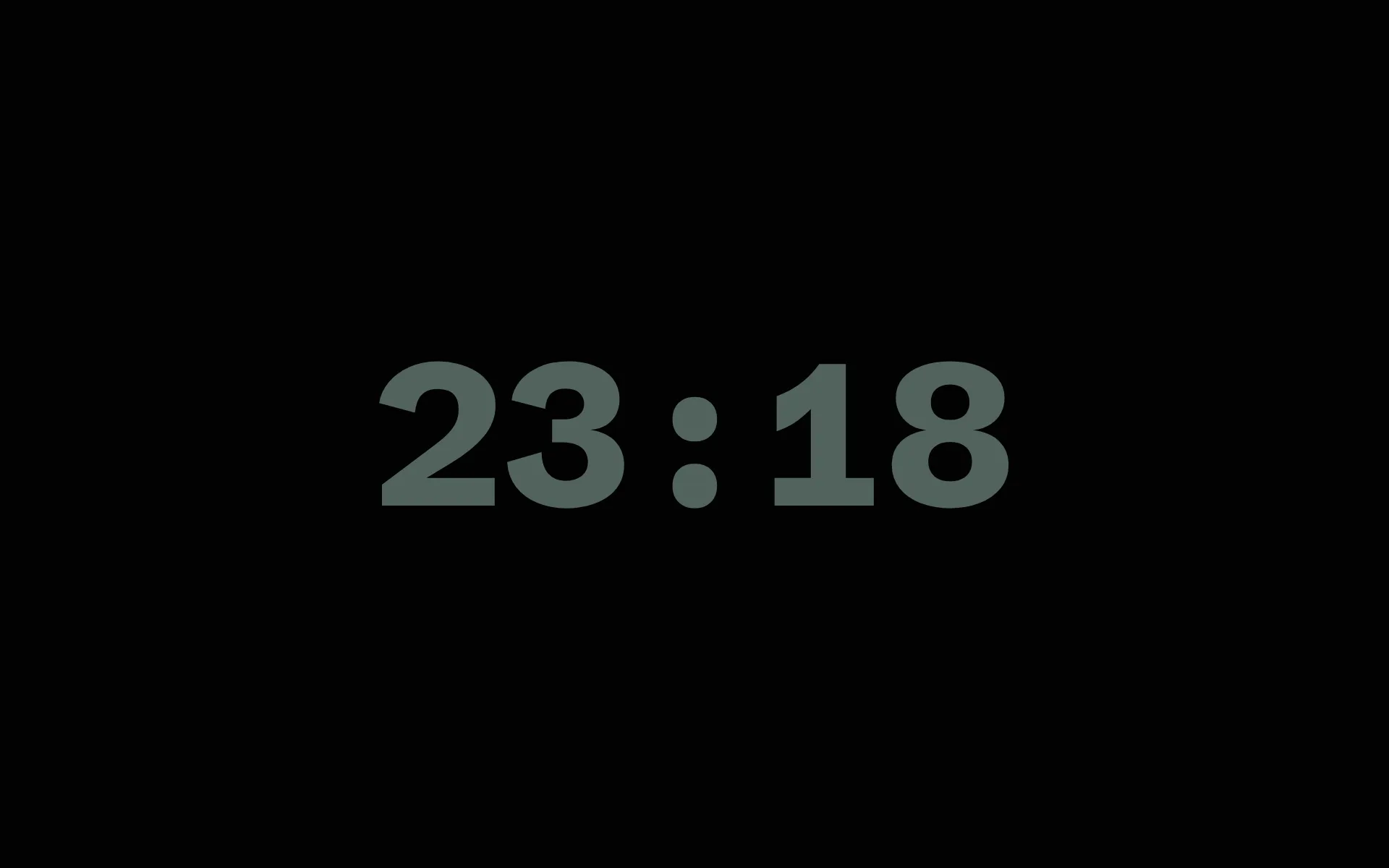
Das echte Ruhebild der App. Tippt auf eine Tageszeit.
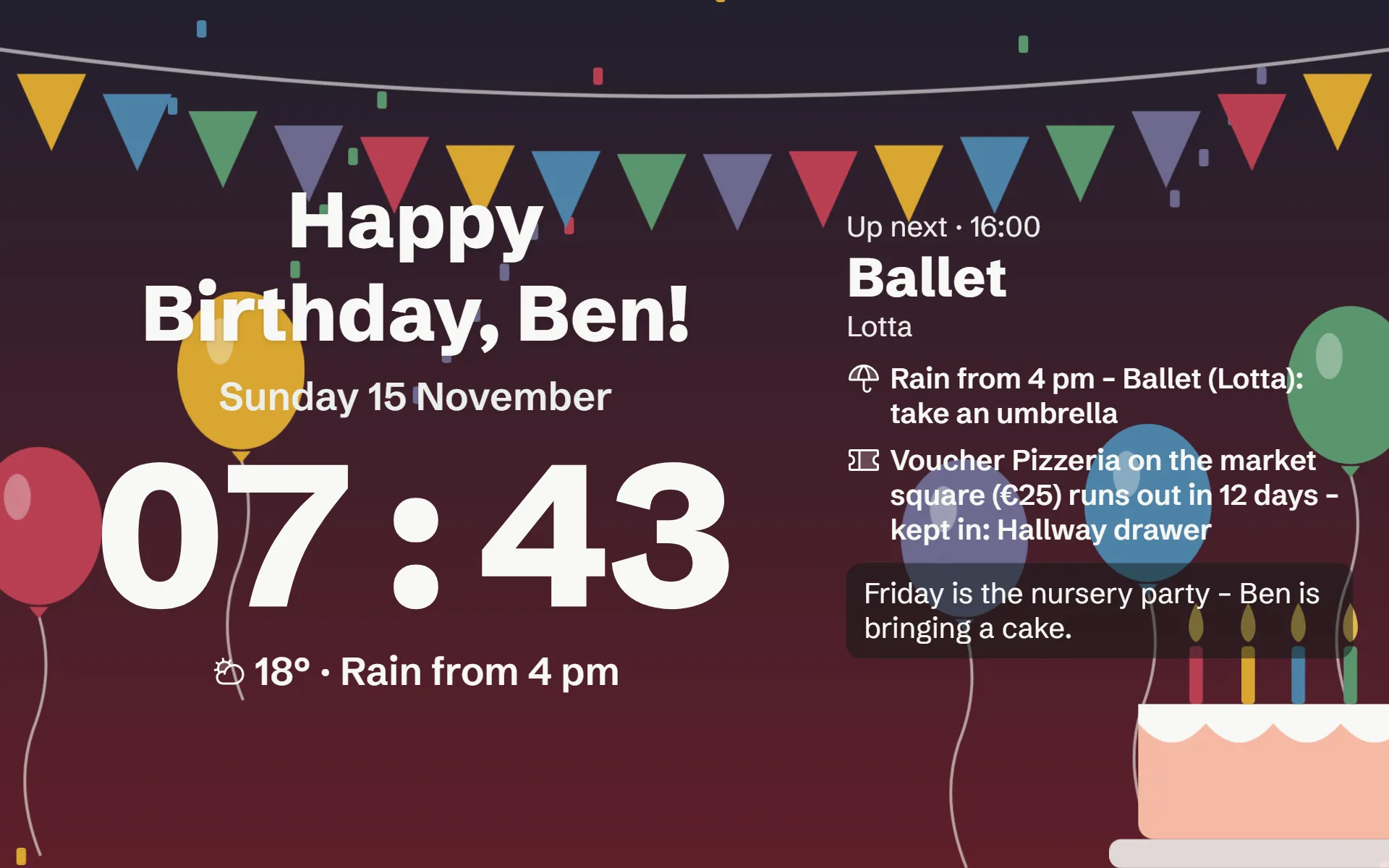
On birthdays and holidays such as Advent, Christmas, New Year’s Eve and Easter there is a rest screen of its own. You can switch it off.
Does the wall display remind us of events?
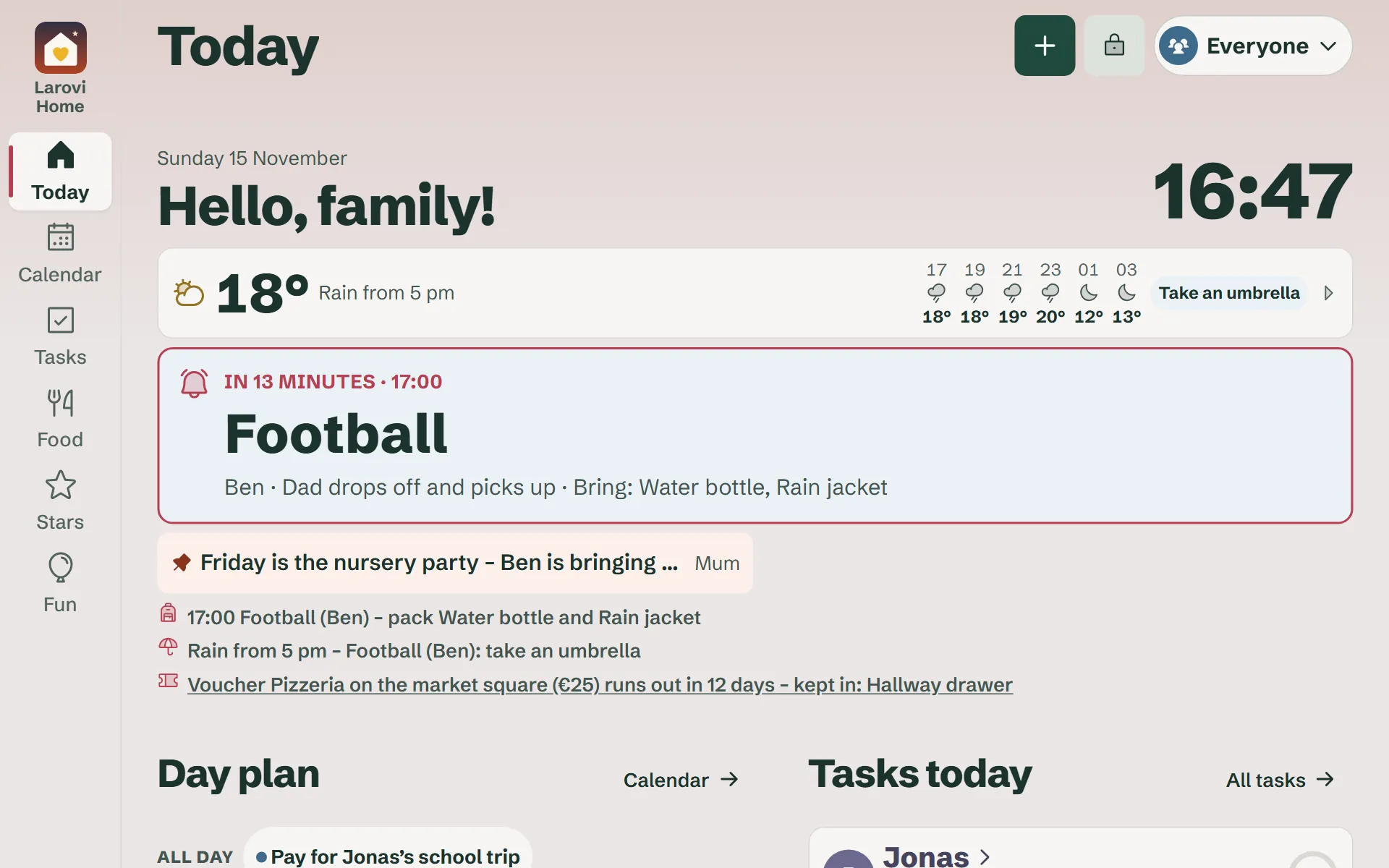
Yes. 15 minutes ahead a big card appears, for example “In 13 minutes · 17:00: Football, Ben. Dad drops off and picks up. Bring: water bottle, rain jacket.” If you like, a gentle chime sounds with it. Parents and teens also get reminders on their phones.
How do we set up family mode?
In a minute, without a password. You need a parent’s phone and the device everyone is going to use.
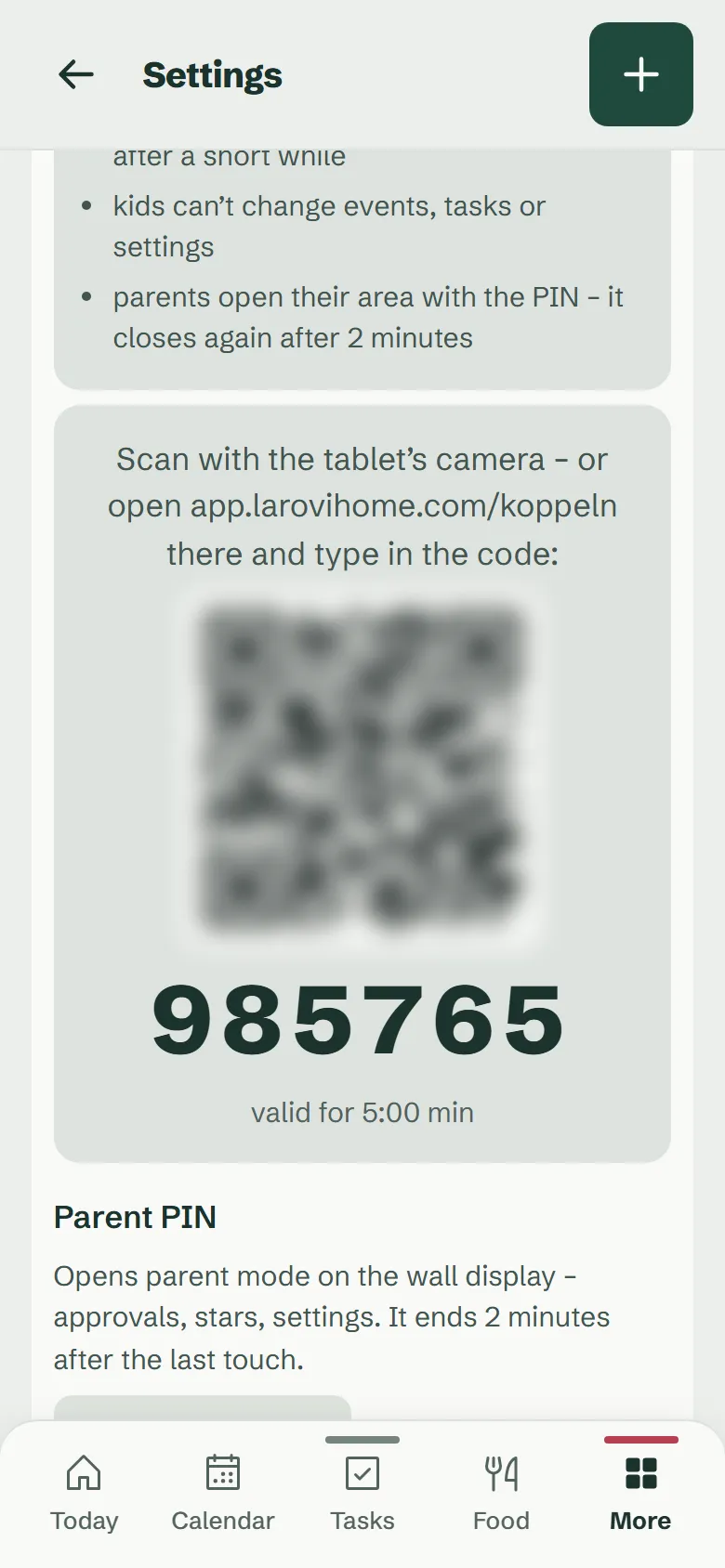
- Get a code. On a parent’s phone: Settings → Family mode & PIN. Give the device a name such as “Kitchen” if you like and tap “Pair device”: a QR code and a six-digit code appear.
- Scan. Scan the QR code with the tablet’s camera. Or open app.larovihome.com on the tablet, tap “Pair this device” and enter the code.
- Done. The tablet shows “Today” for the whole family. Under Settings → Family mode & PIN you see it by name and when it was last in use.
Already signed in on the tablet? Then tap “Switch this device to family mode” on “Today”. The tablet signs you out there and pairs itself; you stay signed in on your phone.
Can the kids change anything?
No. In family mode there is no sign-in and no settings for everyone. The parents’ area only opens with your PIN and closes again after a short while. If the PIN is entered wrongly several times, the device waits longer each time. At the top there is a lock 🔒: choosing a person works without the PIN, the lock opens the parents’ area with the parent PIN.
Parents’ area: PIN only, closes after 2 minutes.
How many wall displays can we use?
As many as you like, free of charge. Each device is paired once and gets a name of its own. You set text and button size per device, from 80 to 120 per cent: bigger for the hall, smaller for the tablet on the kitchen table. If you like, it runs in full screen, without the bars at the top and bottom (Settings → Display → Full screen on this device).
A parent’s phone shows the code under Settings → Family mode & PIN → “Pair device”.
Which tablet works?
- An Android tablet with a current Chrome or an iPad with a current Safari
- from about 10 inches it is easy to read from two or three metres
- permanently on the charging cable; the screen stays on while Larovi Home is open
How to put the tablet up
A simple wall holder or a tablet stand on a shelf is enough. Power, screen and a few settings on the tablet matter more than the holder.
- Pick a spot. Where everyone walks past: kitchen, hall, dining table. At adult eye level, so the kids can reach it with one step, and out of direct sunlight.
- Holder. A wall holder for tablets your size, a stick-on or screw-on holder, or a stand. Make sure the charging cable stays free at the bottom or side.
- Power. The tablet stays on the charging cable. A flat cable in a cable channel looks tidy. Many tablets have a setting that only charges the battery to about 80% (“Protect battery” or “Optimised charging”), which is kinder to it in constant use.
- Keep the screen on. While Larovi Home is open, the screen stays on. Still set the tablet’s auto-lock to “Never” or the longest time, in case the browser is not allowed to.
- Show only Larovi Home. On the iPad, “Guided Access” (Settings → Accessibility) keeps the app in front; on Android tablets, “App pinning” (Settings → Security). That way small fingers do not end up somewhere else.
- Dark at night. Under Settings → Display you choose from when the wall display goes almost black at night. Then only the clock glows softly and no chime sounds.
Wall display or a ready-made device?
Ready-made family wall calendars such as Skylight or Hearth cost around 300 to 700 dollars in the US, often plus a subscription. German retailers do not list these makers on their sites (as of October 2026).
A ready-made device is handy if you have no tablet and do not want to set anything up. If you have one, you do not need a second.
Compare Skylight, Hearth, Cozi, FamilyWall and TimeTree, side by side and factualQuestions about the wall display
Does a tablet on the wall use a lot of power?
A tablet usually needs only a few watts while running. At night the rest screen dims almost completely.
Answer on its own pageDoes the wall display work without internet?
New events and ticking off need Wi-Fi. If it drops out briefly, the last state stays visible.
Answer on its own pageShould I sign in on the family tablet or pair it?
Pair it. Only in family mode does the screen stay on, the rest screen appear, a large card with a chime remind you of events, and kids can’t change anything. Signed in, it stays a parent’s device. Pair it under Settings → Family mode & PIN with a QR code.
Answer on its own pageDoes the tablet have to hang on the wall?
No. Family mode suits any device everyone uses: on the wall, on the kitchen worktop, in the hall or next to the sofa. A stand is enough.
Answer on its own pageCan I show the wall display on a TV or laptop?
Yes, Larovi Home runs in any current browser. Ticking things off needs a touchscreen.
Answer on its own page